
Step 1: Add a video before verifying
(Note: If you already have your video content on PUBLC, skip to step 2).
In order to verify your YouTube channel, you must be the Admin of that channel on YouTube.
Please ensure you have added at least one content item manually from that YouTube channel to PUBLC before starting the verification.
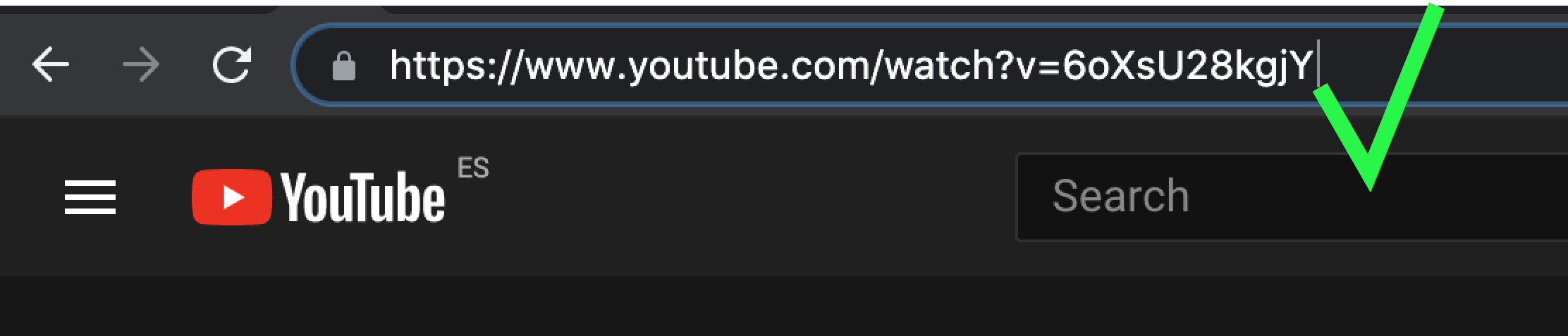
To add at least one content manually, please copy the full URL of your video and NOT the shortened URL.
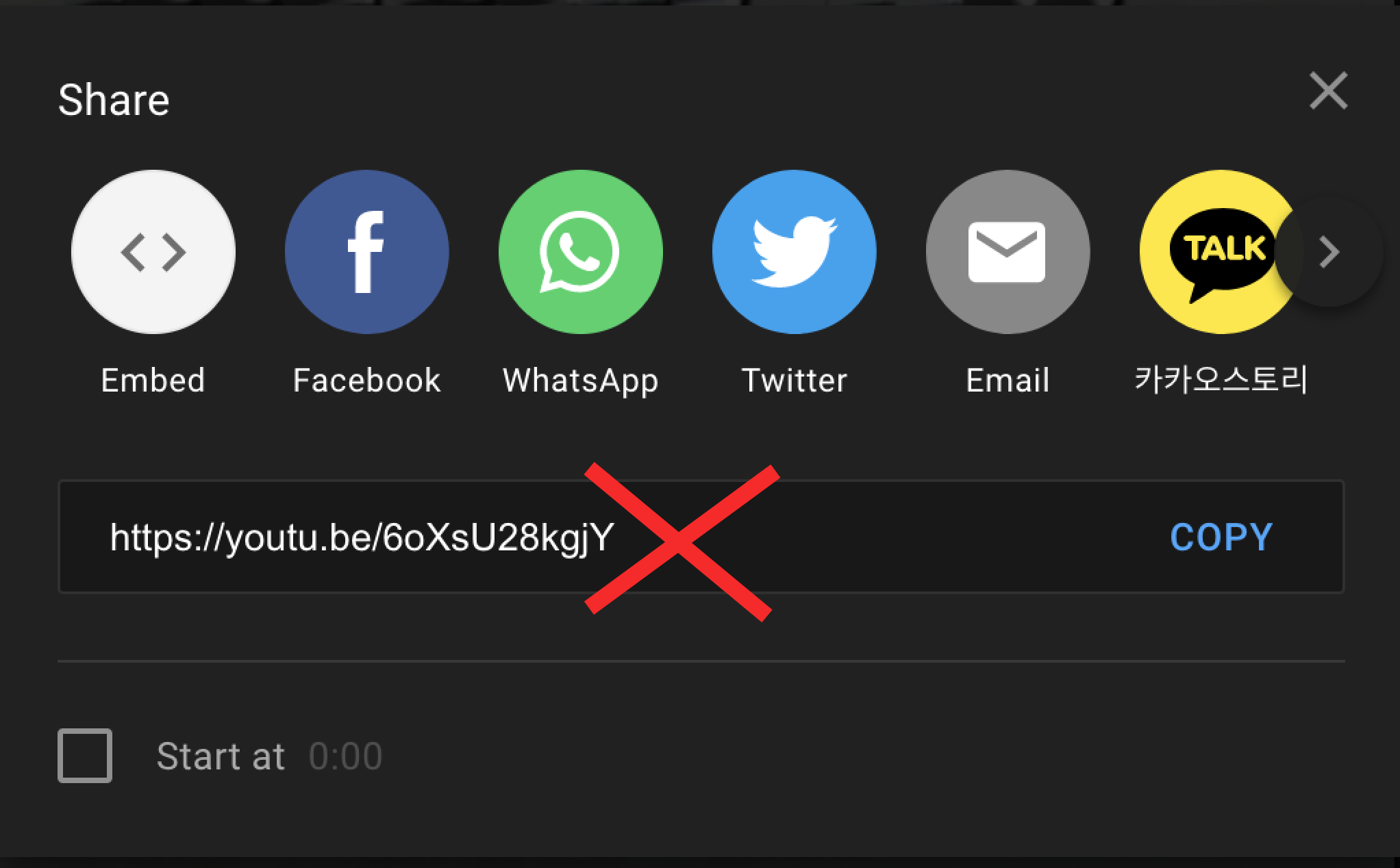
Copy the full video URL and then click the ''+'' button on PUBLC at the top right to add the video.
Step 2: Verify your channel
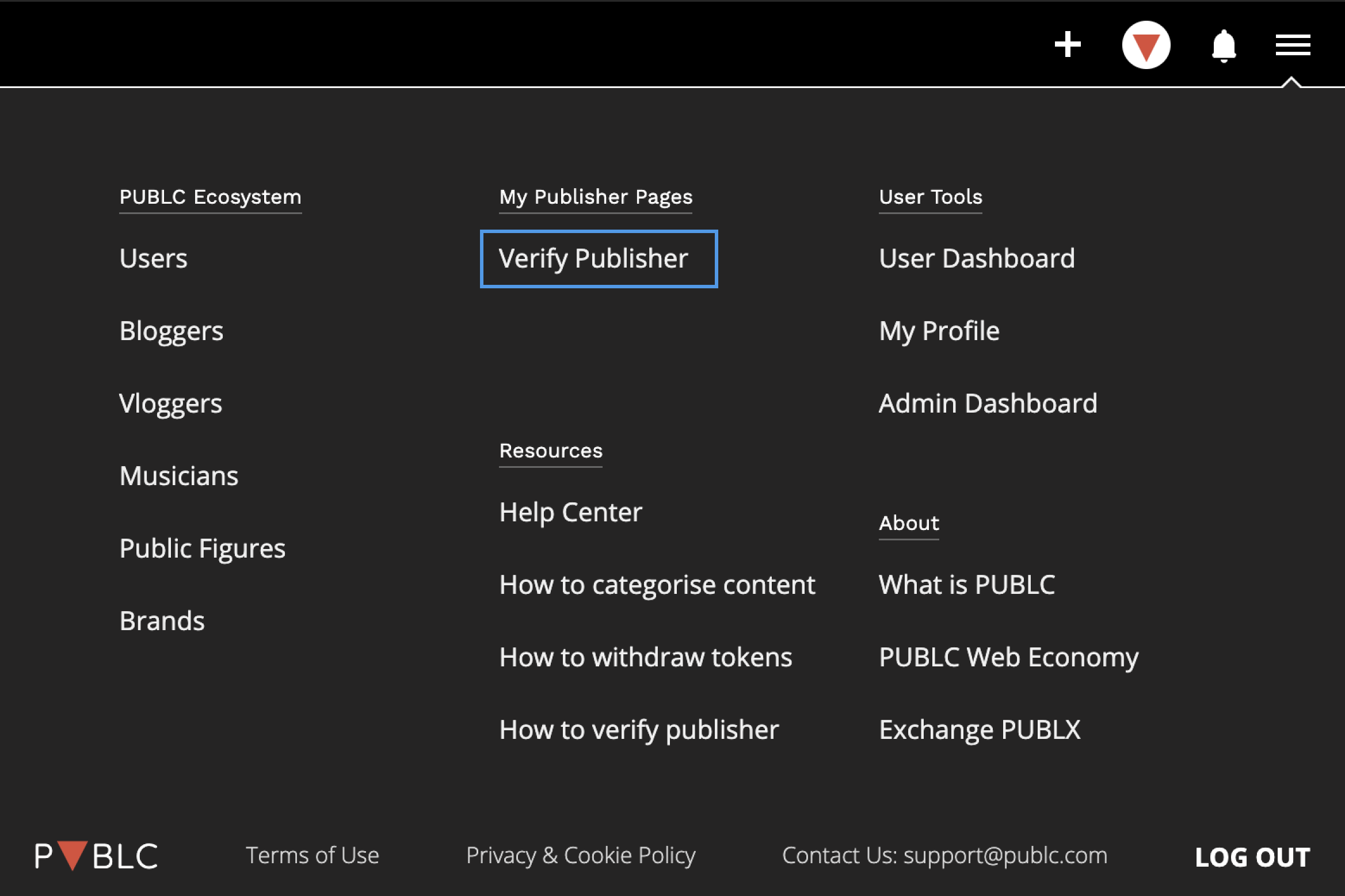
1) Enter the menu on the top right corner and click "Verify Publisher".
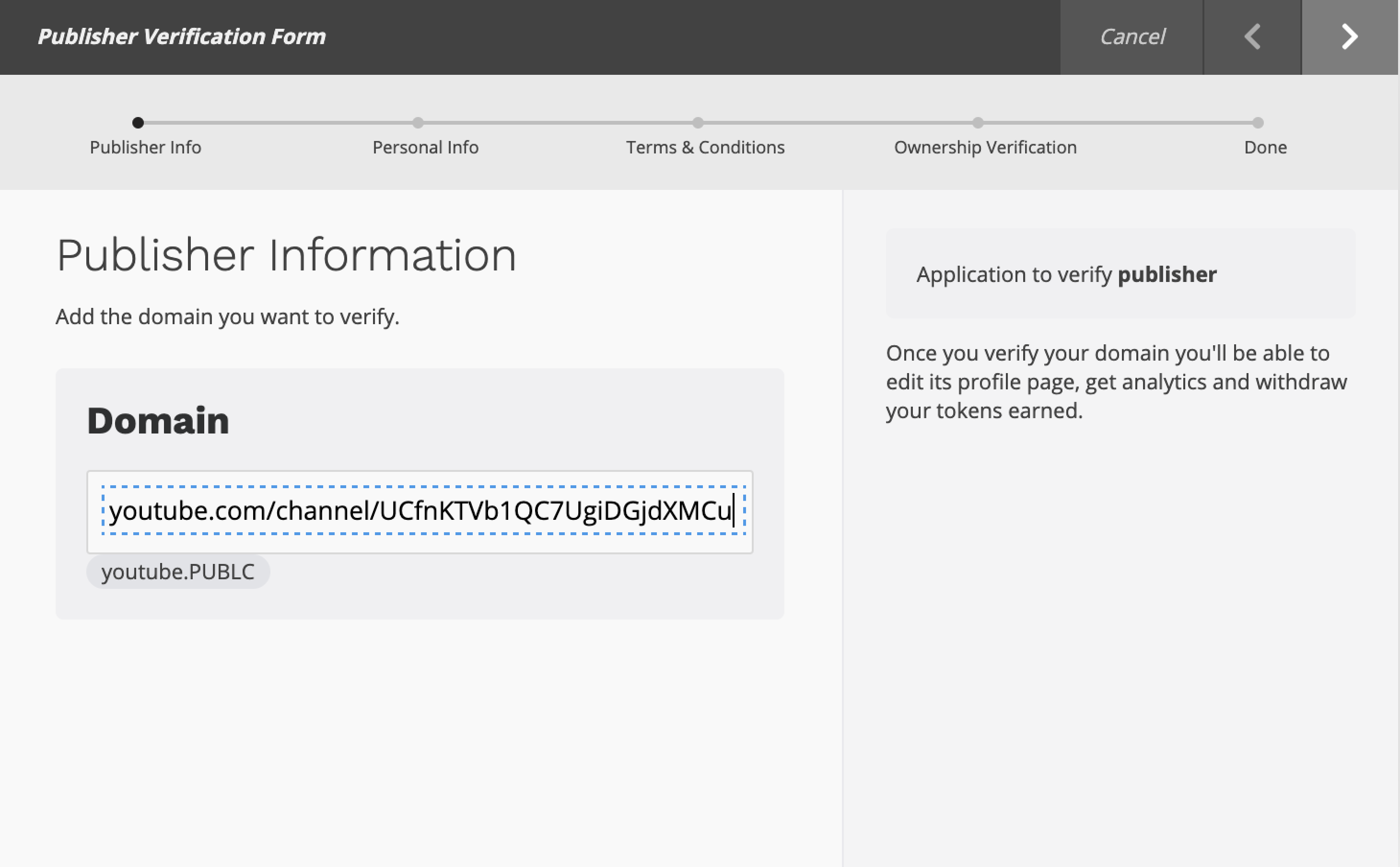
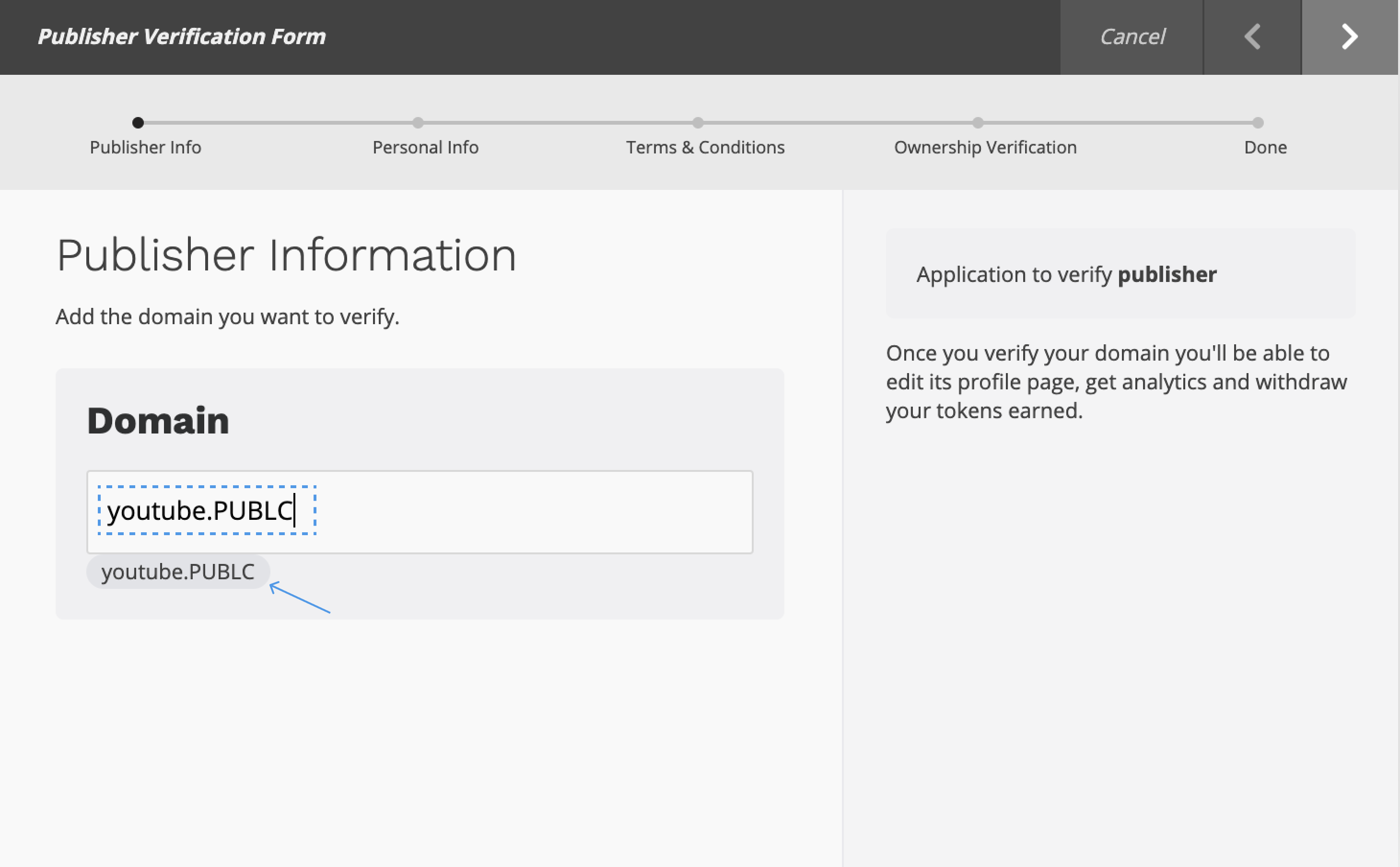
2) Copy paste the full URL of your YouTube channel (not your youtube user url), and select the suggested result. Please note, PUBLC will automatically reduce your channel name to the following format: "youtube.ChannelName"
Important note:
If for any reason pasting your channel URL gives you an error, try typing your channel name in the following format: "youtube.ChannelName", see the example below:
3) Once you fill in your personal details and agree to the T&C, you will be asked to use Google Authentication to complete the verification process.
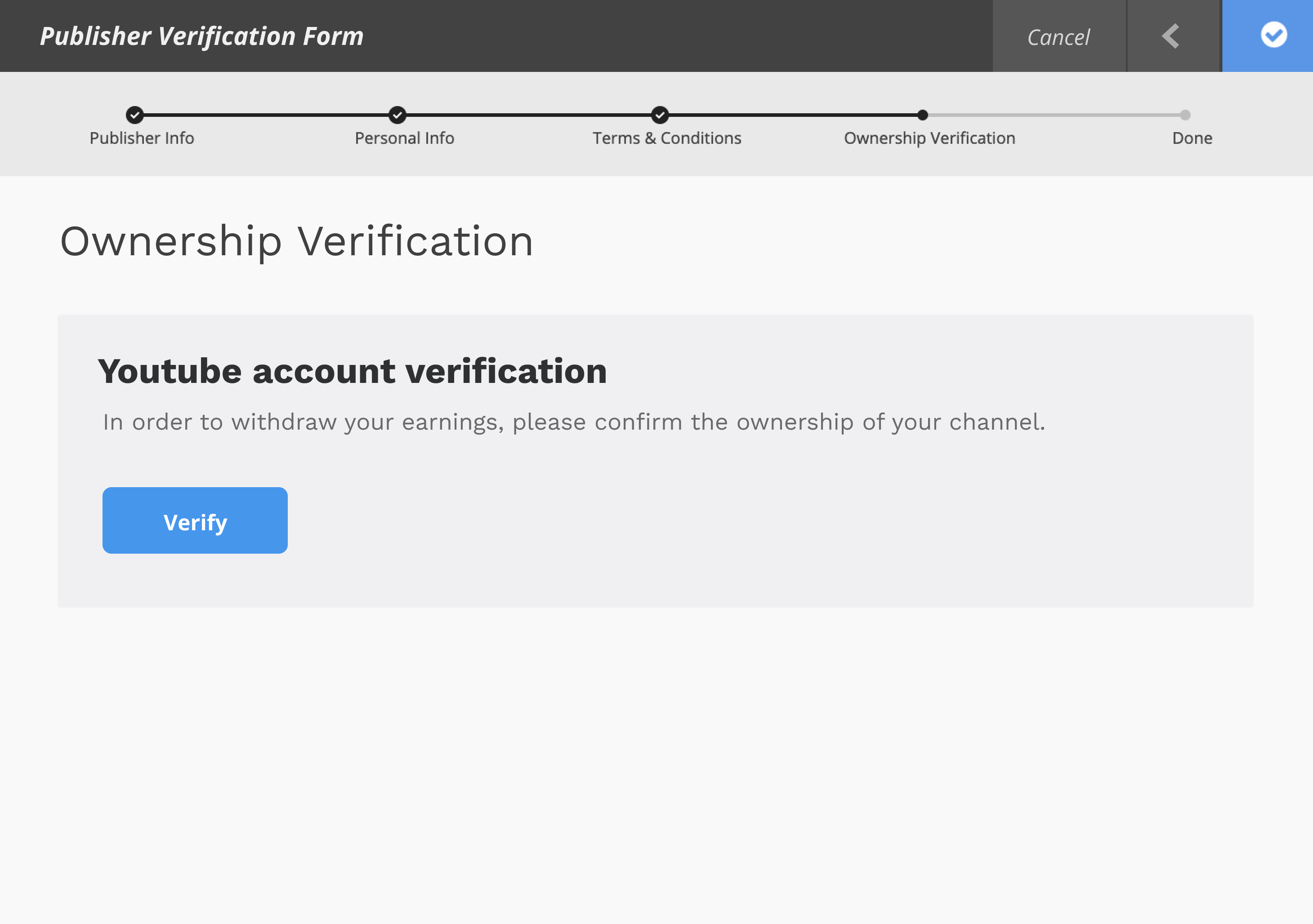
Google Account Authentication
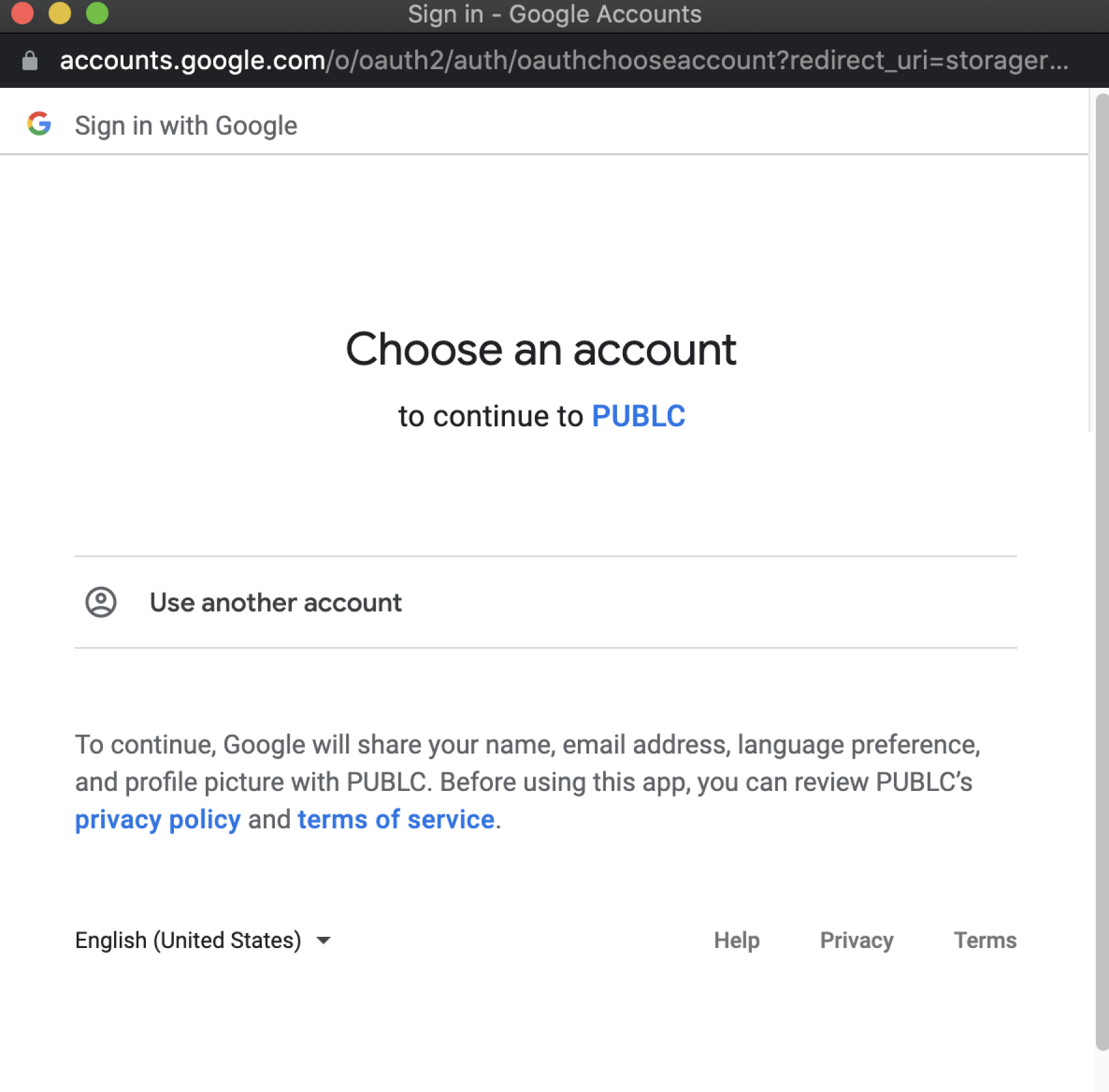
⚠️ Important note: Please ensure you are using the same email address as the email address you are using as an admin of your YouTube channel, otherwise the verification will fail.
4) A successful Google Authentication completes the YouTube publisher verification on PUBLC.
Once verified, your past content will be crawled over the next few days and additionally any new content will be crawled every day.
Comments
0 comments
Please sign in to leave a comment.